

Python is one of the friendliest languages to learn and one of the most powerful to keep. It reads almost like English, runs on every major operating system, and powers everything from small automation scripts to web apps, data science, and AI. This is the first part of our Python Fundamentals series, and by the end of it you will have Python installed, understand how to run code two different ways, and have written a program that greets you by name.
What Python is and why it's popular
Python is a general-purpose programming language created by Guido van Rossum and first released in 1991. It is interpreted, which means you run your code directly without a separate compile step, and dynamically typed, which means you don't have to declare the type of every value up front. That combination makes it quick to write and easy to read.
Its popularity comes down to a few practical things:
- A clean, readable syntax that lowers the barrier for beginners.
- A huge standard library plus hundreds of thousands of third-party packages.
- Strong demand across web development, data science, machine learning, scripting, and testing.
- A large, welcoming community, so answers to your questions are rarely far away.
We will use Python 3.10 or newer throughout this series. Python 2 is long retired, so if you see it anywhere, ignore it.
Installing Python 3
Head to python.org and download the latest 3.x release for your system. The steps differ slightly per platform.
Windows: Run the installer, and importantly tick the box that says "Add python.exe to PATH" before you click Install. That one checkbox saves a lot of confusion later.
macOS: Download the macOS installer from python.org and run it. macOS ships with an older system Python, so installing a fresh one from python.org keeps things predictable.
Linux: Most distributions already include Python 3. If not, use your package manager, for example sudo apt install python3 on Debian or Ubuntu.
To confirm it worked, open a terminal (Command Prompt or PowerShell on Windows) and check the version:
python --version
On macOS and Linux you often need to type python3 instead:
python3 --version
Either way you should see something like Python 3.15.0. If you get "command not found", the installer probably didn't add Python to your PATH, so reinstall with that option enabled.
Verify your install (a quick checklist)
Command names differ slightly per platform, so use the one that matches your system:
- Windows: Python ships with a launcher called
py. Runpy --versionto check the version, andpy hello.pyto run a script. Thepylauncher works even whenpythonalone doesn't, and it can pick a specific version withpy -3.12. - macOS: Use
python3andpip3. The barepythoncommand may be missing or point at an old system version, so preferpython3 --version. - Linux: Use
python3as well. If it isn't installed, add it with your package manager (for examplesudo apt install python3 python3-pip).
On every platform, confirm the package installer works too by running pip --version (or pip3/py -m pip). If all of these report a 3.10-or-newer version, you are ready to write code.
The REPL versus script files
There are two ways to run Python, and you will use both. The first is the REPL (Read-Eval-Print Loop), an interactive prompt where you type one line and immediately see the result. Start it by typing python (or python3) with no filename:
>>> 2 + 2
4
>>> "hello".upper()
'HELLO'
>>> exit()
The REPL is perfect for quick experiments and checking how something behaves. But it forgets everything when you close it, so for real work you save your code in a script file ending in .py and run the whole file at once. That is what we will do next.
Choosing an editor
You can write .py files in any text editor, but a good one makes life easier with syntax highlighting and helpful hints.
VS Code is a free, popular choice that grows with you. Download it from code.visualstudio.com, then open the Extensions panel (the icon that looks like stacked squares), search for "Python", and install the official extension published by Microsoft. That extension adds autocompletion, error underlining as you type, and a Run button so you can execute a script without leaving the editor. When you open a Python file, VS Code may ask you to choose an interpreter in the bottom bar — pick the Python 3 install you set up earlier, and it will use that version to run your code.
IDLE is the simpler alternative that comes bundled with Python itself, so there is nothing extra to install. It opens a REPL window and a plain editor, and you run a script with the F5 key. IDLE is fine for your very first steps, while VS Code is worth adopting once you start writing more than a few files. Pick either one and don't overthink it — the code you write is identical in both.
Your first program
Create a file called hello.py and type a single line:
# hello.py — the traditional first program
print("Hello, world!")
The print() function displays whatever you pass it. The text in quotes is a string. The line starting with # is a comment — Python ignores everything after the #, so comments are notes for humans reading the code.
Run it from the terminal by passing the filename to Python:
python hello.py
You should see Hello, world! printed back. Congratulations — that is a complete, working Python program.
Reading input and greeting the user
Printing a fixed message is a start, but real programs respond to their user. The input() function pauses the program, waits for the user to type something and press Enter, then hands back what they typed as a string. Here is a slightly bigger program, greet.py:
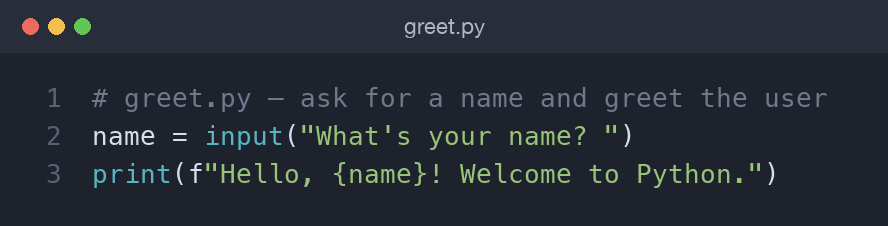
# greet.py — ask for a name and greet the user
name = input("What's your name? ")
print(f"Hello, {name}! Welcome to Python.")
Two new ideas appear here. First, name = ... stores the result in a variable so we can reuse it. Second, the f before the opening quote makes it an f-string (formatted string): any expression inside {curly braces} is replaced with its value. So if you type Ada, the program builds the sentence Hello, Ada! Welcome to Python.
Save the file and run it:
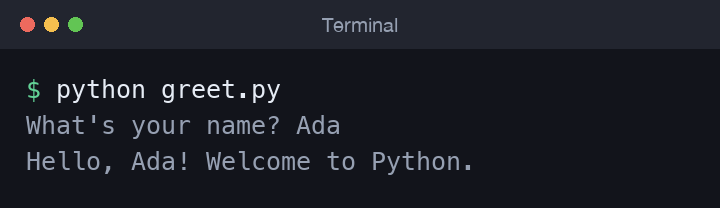
$ python greet.py
What's your name? Ada
Hello, Ada! Welcome to Python.
Indentation matters (a teaser)
Most languages group code with curly braces; Python uses indentation instead. The spaces at the start of a line are part of the syntax, not just for looks. This snippet only prints when the condition is true, and the indented line is what belongs "inside" the if:
name = input("Name: ")
if name:
    print(f"Nice to meet you, {name}!")
We will dig into conditions and loops in a later post. For now, just know that consistent indentation (four spaces is the convention) is how Python knows which lines belong together — get it wrong and Python will complain.
Reading a simple error message
Errors are normal, and Python tries to help. Suppose you make a typo and write prnt instead of print:
$ python hello.py
Traceback (most recent call last):
  File "hello.py", line 2, in <module>
    prnt("Hello, world!")
NameError: name 'prnt' is not defined
Read these from the bottom up. The last line names the problem — NameError: name 'prnt' is not defined — and the lines above point at the file and line number. Here Python is saying it has never heard of prnt, which is your cue to check the spelling. Getting comfortable reading these messages is one of the biggest early wins.
Common beginner mistakes
A handful of small stumbles trip up almost everyone at the start. Knowing them in advance saves frustration:
- Mixing tabs and spaces. Because indentation is part of Python's syntax, mixing tab characters and spaces in the same block can trigger a
TabErroreven when the code looks aligned. Set your editor to insert four spaces when you press Tab (VS Code and IDLE both do this by default) and stay consistent. - Accidentally running Python 2. On some older systems the
pythoncommand still points at the retired Python 2, whereprint "hi"was valid and f-strings didn't exist. If a modern example fails in a strange way, runpython --version; if it says 2.x, switch topython3(orpyon Windows). - Forgetting to save the file. Editors keep unsaved changes in memory, so running the script executes the last saved version. If a change doesn't seem to take effect, save the file first (Ctrl+S, or Cmd+S on macOS) and run it again. VS Code marks an unsaved file with a dot in its tab.
- Running the command from the wrong folder.
python hello.pyonly works when your terminal is in the same directory ashello.py; otherwise you get a "No such file or directory" message. Usecdto move into the folder first.
Try it yourself
- Open the REPL and try
print(3 * 7),len("python"), andtype(42). - Change
greet.pyto also print the length of the name withprint(len(name)). - Deliberately misspell
printto see theNameError, then fix it.
Wrapping up
You now have Python installed, know the difference between the interactive REPL and script files, and have written programs that print, take input, and greet the user with an f-string. You have also met comments, variables, indentation, and your first error message. Next up in the series is Variables, Numbers, and Types in Python, where we look closely at how Python stores and works with different kinds of values.
Comments (0)
No comments yet — be the first to share your thoughts.