

Once your programs grow beyond a single file, you need a way to split code into reusable pieces and to keep each project's dependencies from colliding. That is exactly what modules, packages, and virtual environments do. This is the ninth part of our Python Fundamentals series, and by the end you'll organise code into your own modules, pull in third-party libraries with pip, and isolate every project in its own clean environment.
What a module is
A module is simply a .py file. Any functions, classes, or variables you define in it can be reused elsewhere by importing it. You have been using modules already — every time you write import you load one, whether it ships with Python or you wrote it yourself.
Grouping related code into modules keeps files small and focused. The functions from part six and the classes from part seven are natural things to move into a module and reuse across projects.
import, from-import, and aliasing
There are three common ways to bring code in. Plain import loads the whole module and you reach names through it; from ... import pulls specific names into your file; and as renames something to a shorter or clearer alias.
import math                    # use as math.sqrt
from math import sqrt, pi      # use sqrt and pi directly
import statistics as stats     # alias: stats.mean(...)

print(math.sqrt(16))   # 4.0
print(sqrt(25))        # 5.0
print(stats.mean([1, 2, 3, 4]))  # 2.5
Prefer plain import or explicit from x import name over from x import *, which dumps every name into your file and makes it unclear where things came from.
A quick tour of the standard library
Python ships with a large standard library — batteries included. A handful of modules come up constantly:
math—sqrt,floor,ceil, constants likepirandom—random(),randint(a, b),choice(seq),shuffle(seq)datetime— dates, times, and durationsjson— convert between Python objects and JSON textos/pathlib— work with the filesystem and paths
import random
from datetime import date
from pathlib import Path

print(random.randint(1, 6))        # a dice roll
print(date.today().isoformat())    # 2026-09-02
print(Path("data") / "notes.txt")  # data/notes.txt
pathlib.Path is the modern, cross-platform way to build paths — the / operator joins parts correctly on every operating system.
A few of these repay a closer look. datetime handles both points in time and the gaps between them, so you can add a timedelta to a date and get another date back. json moves data in and out of text with two pairs of functions: dumps/loads work with strings, while dump/load work with files.
from datetime import date, timedelta
import json

due = date.today() + timedelta(days=7)
print(due.isoformat())                 # one week from today

record = {"name": "Ada", "score": 95}
text = json.dumps(record)              # dict -> JSON string
print(text)                            # {"name": "Ada", "score": 95}
print(json.loads(text)["score"])       # JSON string -> dict -> 95
Reaching for the standard library first is a habit worth building: before installing a package, check whether Python already ships something that does the job.
How Python finds a module
When you write import greetings, how does Python know which file to load? It searches a list of directories held in sys.path, in order, and uses the first match it finds:
import sys
for entry in sys.path:
    print(entry)
The list starts with the folder of the script you ran, then the directories from the PYTHONPATH environment variable, then the standard library and the installed-packages locations. The practical takeaway is that the folder of your running script is searched first — which is exactly why a local file named random.py can hide the real random module.
Writing and importing your own module
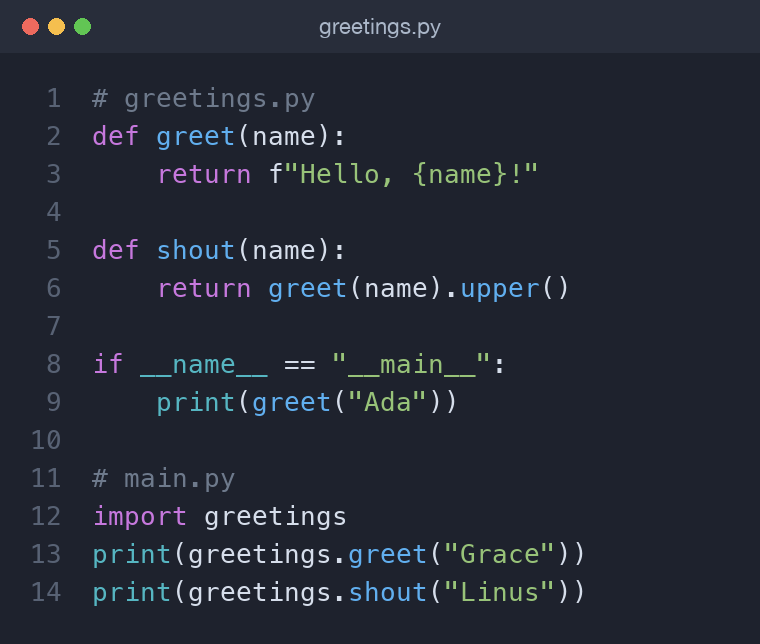
Say you create a file called greetings.py with a couple of functions and a __main__ guard:
# greetings.py
def greet(name):
    return f"Hello, {name}!"

def shout(name):
    return greet(name).upper()

if __name__ == "__main__":
    print(greet("Ada"))
From another file in the same folder you import it by its filename, without the .py:
# main.py
import greetings

print(greetings.greet("Grace"))
print(greetings.shout("Linus"))
The if __name__ == "__main__": guard
When Python runs a file directly, it sets that file's __name__ to the string "__main__". When the same file is imported, __name__ is set to the module's name instead. The guard uses this difference so code runs only when the file is executed directly, not when it is imported.
Without the guard, the demo print(greet("Ada")) in greetings.py would fire every time another file imported it — noisy and surprising. With the guard, importing stays silent and running the file directly still shows the demo. Put reusable definitions at the top level and any script-style code under the guard.
Packages
A package is just a folder containing modules. Add related .py files to a directory and you can import them with dot notation, for example from mypackage import greetings. In older code you'll see an __init__.py file marking the folder as a package; it is optional in modern Python but still useful for package-level setup.
Packages let you organise a growing project into logical groups — models, utils, services — instead of one enormous file.
Building a small package
Suppose you gather text helpers into a folder named textkit:
textkit/
    __init__.py
    greetings.py
    formatting.py
The __init__.py file runs when the package is first imported. Leaving it empty is fine, but it is a convenient place to lift the most useful names up to the top level so callers do not have to know the internal file layout:
# textkit/__init__.py
from .greetings import greet, shout
With that in place, importing stays short and stable even if you later reorganise the files inside the package:
from textkit import greet
print(greet("Grace"))
The leading dot in from .greetings import greet is a relative import — it means "from this package", making the intent clear and keeping the reference working wherever the package is installed.
Installing third-party packages with pip
Beyond the standard library sits the Python Package Index (PyPI), with hundreds of thousands of packages. pip is the installer that fetches them:
pip install requests
That downloads requests and anything it depends on, after which import requests just works. pip does more than install — a few commands come up daily:
pip install --upgrade requests   # move to the newest version
pip uninstall requests           # remove a package
pip list                         # everything installed, readable
pip freeze                       # same, in requirements.txt format
pip list is meant for humans — a tidy table you scan. pip freeze prints the exact package==version lines that a requirements.txt file needs, which is why it is the one you redirect to a file. But installing packages globally quickly turns messy: different projects want different versions, and one upgrade can break another project.
Virtual environments
A virtual environment is an isolated, per-project Python with its own installed packages. It solves the version-collision problem: each project gets exactly the dependencies it needs and nothing else. Python includes the tool built in — venv.
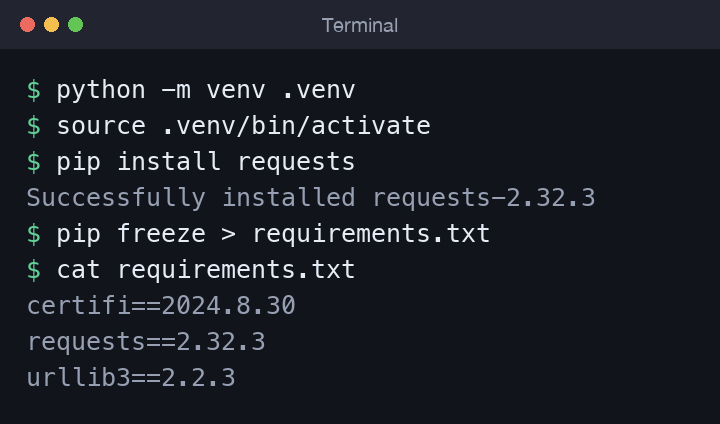
Create one, activate it, install what you need, then record it:
python -m venv .venv
source .venv/bin/activate      # Windows: .venv\Scripts\activate
pip install requests
pip freeze > requirements.txt
Once activated, your prompt shows the environment name and pip installs only into that folder. Type deactivate to leave it. Add .venv/ to your .gitignore — you commit the requirements file, not the environment.
Activating an environment per project is what keeps dependencies from fighting. Project A can pin requests 2.28 while project B runs 2.32, because each has its own isolated .venv and its own copy of every package. Nothing is shared, so upgrading one project can never silently break another. Get into the habit of creating and activating a virtual environment as the very first step in any new project, before your first pip install.
requirements.txt and pip freeze
pip freeze prints every installed package with its exact version, which you redirect into requirements.txt. Anyone else — including future you on another machine — recreates the same environment with a single command:
pip install -r requirements.txt
This file is how Python projects stay reproducible. Commit it to version control so collaborators get identical dependencies.
Common mistakes
- Naming your file after a library. A file called
random.pyshadows the standard-libraryrandom, and imports break. Avoid stdlib names. - Forgetting the
__main__guard. Demo code at the top level runs on import — wrap it in the guard. - Installing without a venv. Global installs cause version clashes; create a virtual environment per project.
- Committing
.venv/. Commitrequirements.txtinstead; the environment itself is large and machine-specific, and it will not work on someone else's operating system anyway. - Using
from module import *. It hides where names come from and can quietly overwrite your own variables. Import the specific names you need. - Forgetting to activate the venv. If
pip installlands in the global Python by mistake, yourrequirements.txtand your imports drift out of sync. Check that your prompt shows the environment name first.
Wrapping up
Modules and packages let you split code into reusable, well-named pieces, while pip and virtual environments keep each project's dependencies clean and reproducible. Practice by moving a few functions into your own module, importing it from a second file, and setting up a .venv with a requirements.txt. In the final part of the series, Testing Your Code and Building Your First Python Project, we bring everything together into a complete, tested project.
Comments (0)
No comments yet — be the first to share your thoughts.